







Get Your Confirmation ID — OpenSmartTech
Enter your Installation ID to instantly retrieve your Confirmation ID. Verified OpenSmartTech customers only.
1
Enter ID
2
Processing
3
Your CID
Enter your Installation ID
Processing your request…
Connecting to activation server…
This usually takes 5–30 seconds.
Please don't close or refresh this page.
Please don't close or refresh this page.
How to Get Your Installation ID
The key should be working fine — follow these quick steps to complete activation by phone
1
Go back to the activation screen
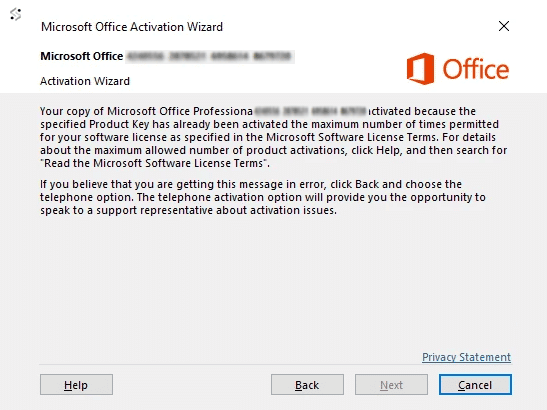
Your key is working fine. Sometimes an activation issue like this can happen due to a missing Windows update. Please go back to the activation screen where you saw the message — we'll resolve this right away.
2
Choose "Activate by Phone" and click Next
On the activation screen, choose the option to activate by phone and click Nächste. Then select your country or region from the dropdown and click Nächste again.
3
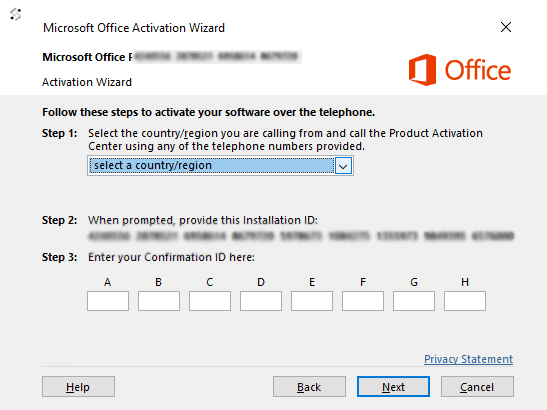
You'll see your Installation ID — copy those numbers
On the next page you'll see an Installation ID — a series of numbers grouped together. Copy it exactly as shown, then scroll up and paste it into the tool above. Enter your Order ID or email, then click Get Confirmation ID.
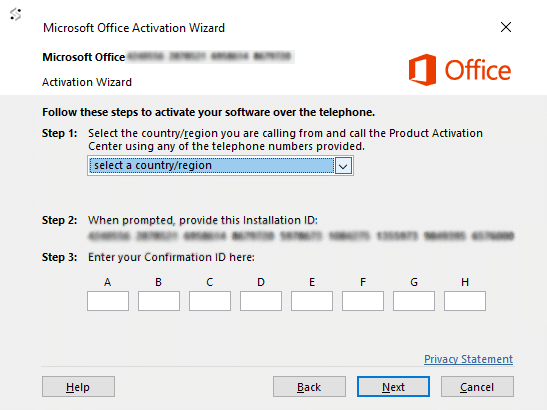
💡 Alternatively, you can simply write down the numbers and type them into the tool above.
📌 We've placed this button right here so you can jump to the tool the moment you have your Installation ID — no scrolling needed.
🔗 Open the Get Confirmation ID ToolPaste your Installation ID into the tool, enter your Order ID, and get your Confirmation ID instantly.
4
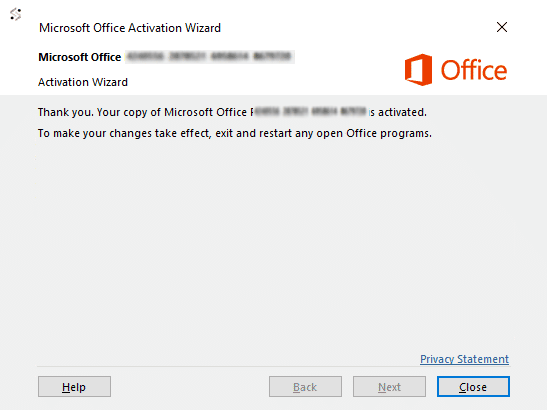
Enter the Confirmation ID — activation complete
Once the tool gives you your Confirmation ID, copy it and enter it into the matching boxes in the activation wizard, then click Nächste. Your product will be activated immediately.